Replacing Thinkpad X1 Yoga CMOS Battery
Introduction
I purchased a Lenovo Thinkpad X1 Yoga 3rd Generation back in 2018, which has a 2K IPS touchscreen, 16GB RAM, and 1TB NVMe SSD. Later, because I got a personal desktop computer, I don’t have to use this laptop very much anymore. However, I still use it occasionally when I travel, because it is still a very capable laptop in 2025.
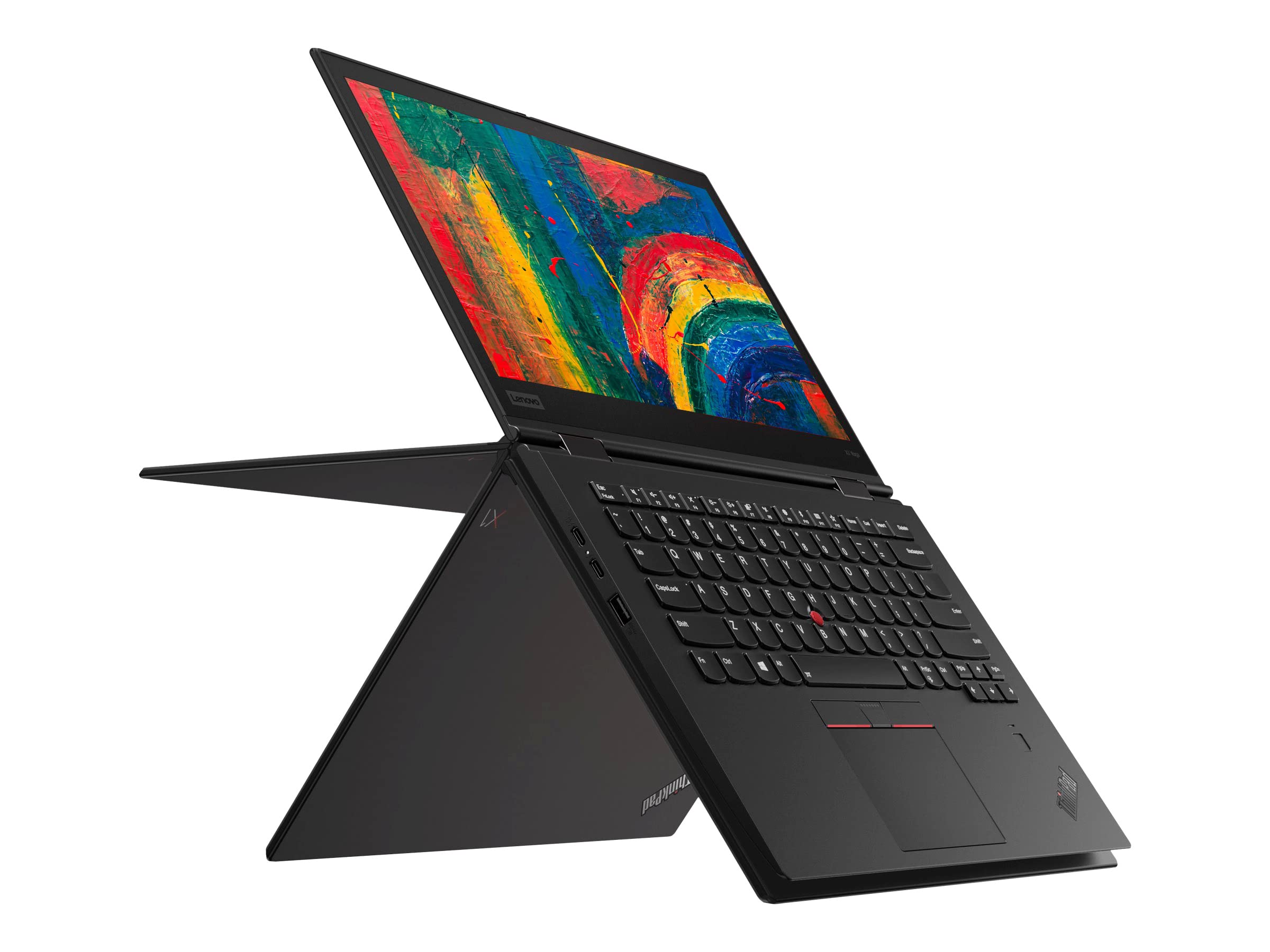
A few years ago, I noticed that when my Thinkpad X1 Yoga was out of battery, it would require me to set the date and time in BIOS every time I powered it on. This is a classic symptom of a dead CMOS battery.
In this blog post, I would like to quickly share my experience replacing the CMOS battery in my Thinkpad X1 Yoga 3rd Gen.
Replacing Thinkpad X1 Yoga CMOS Battery
It seems that the CMOS battery problem in Thinkpad X1 Yoga 3rd Gen is very common, there is already a video tutorial on YouTube about how to replace the CMOS battery exactly for this laptop model.
Thinkpad X1 Yoga 3rd Gen uses a CR2016 coin cell battery for CMOS. But even if I got a new CR2016 battery, I still needed wrap it with some tape which I don’t have and secure it in the battery holder. So I decided to just buy a CMOS battery replacement kit on Amazon, which includes a CR2016 battery with the tape and sticker already attached.

After replacing the CMOS battery, I powered on the laptop and entered BIOS to set the date and time. After saving and exiting BIOS, I powered off the laptop and then powered it on again. This time, the date and time were retained correctly, indicating that the CMOS battery replacement was successful.
References
Replacing Thinkpad X1 Yoga CMOS Battery
https://leimao.github.io/blog/Replacing-Thinkpad-X1-Yoga-CMOS-Battery/